Digital Skills and Job Readiness
Learner's Guide

Signing in to SkillingUp

To access the Digital Skills and Job Readiness platform, follow these steps:
  1. Click the Digital Skills and Job Readiness Platform link
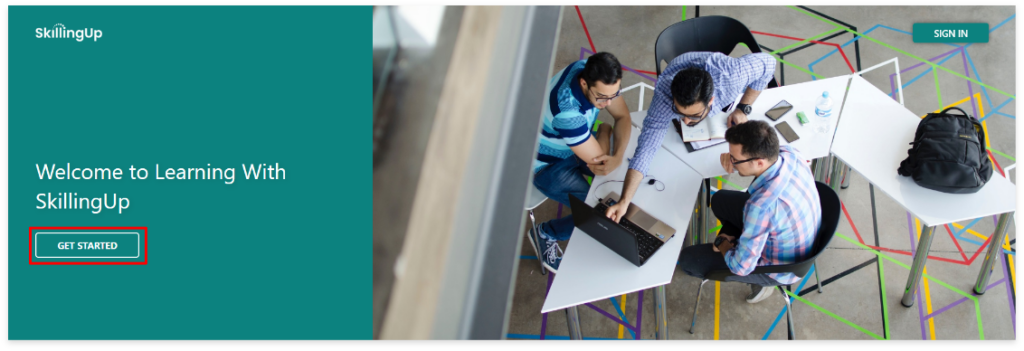
  2. Click “Get Started” button
Screenshot of the Welcome header with the "Get Started" button on the left - three students looking at a laptop

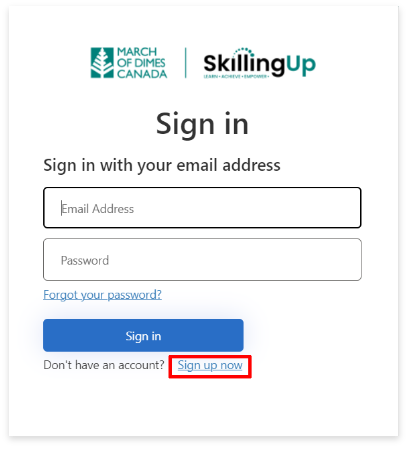
3. On the “Sign in” screen, click “Sign up now” text link (text below the blue “Sign in” button).
Note: You do NOT need to fill in any of the boxes.

Sign in display box. "Sign up now" text link under the "Sign In" button is highlighted

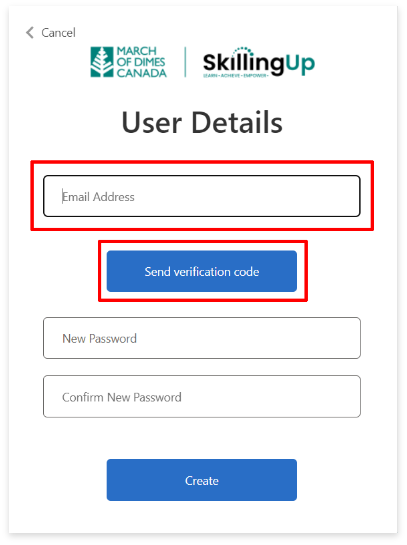
4. On the “User Details” screen, enter your email address and click the blue button with the text “Send verification code”. 

User Details display box. "Email Address" box, and "Send verification code" button is highlighted

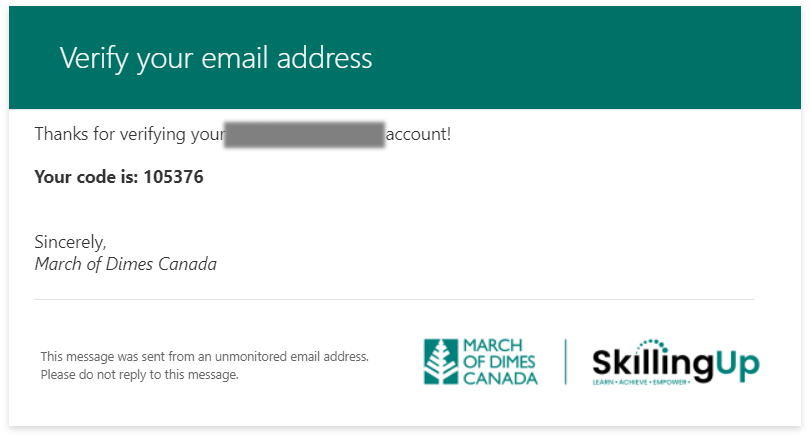
5. You’ll receive an email with a verification code. Simply copy the code from the email. 

Example email from SkillingUp with verification code

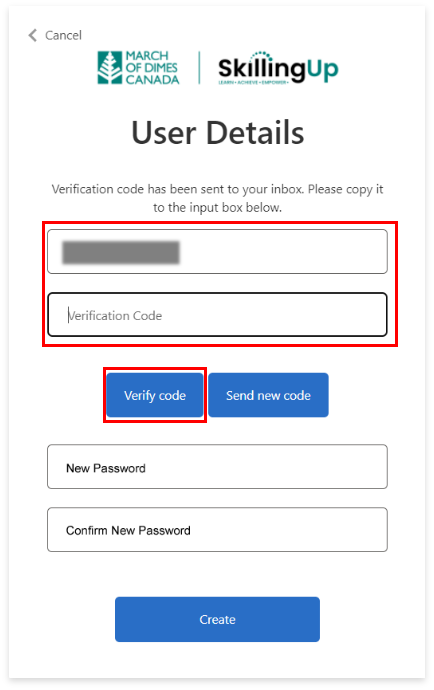
6. On the “User Details” screen, enter your email address and paste the code you just copied from your email.
Then click the blue “Verify code” button.  

Use Details display screen, with email box and verification code box, and blue "Verify code" button highlighted

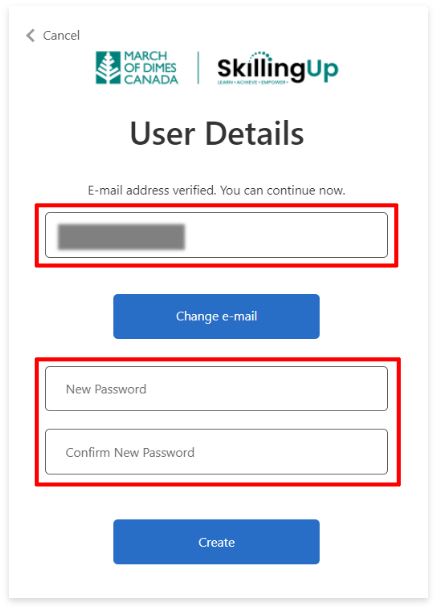
7. On the following “User Details” screen, create a password for your account, and click the blue  “Create” button at the bottom of the display.
Note: Do NOT click the blue button with the text “Change e-mail”.

User Details screen with Email address box and "New Password" and "Confirm New Password" text boxes highlighted.

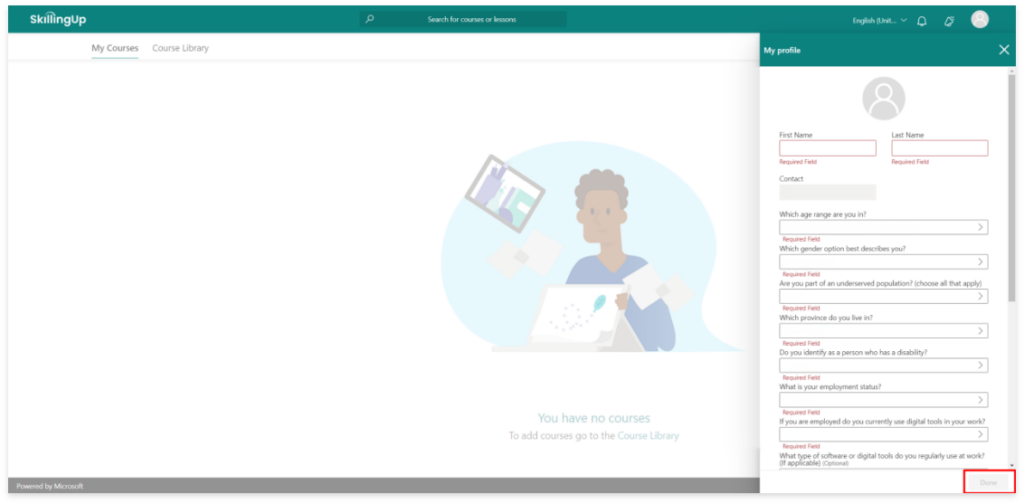
8. Complete the required profile questions and click “Get Started”.

9. You will now be logged in.

SkillingUp logged in landing page with "My Courses" underlined on top-left menu and "My profile" tab on right-side of page

Accessing Your Learning Pathway – Beginner and Intermediate

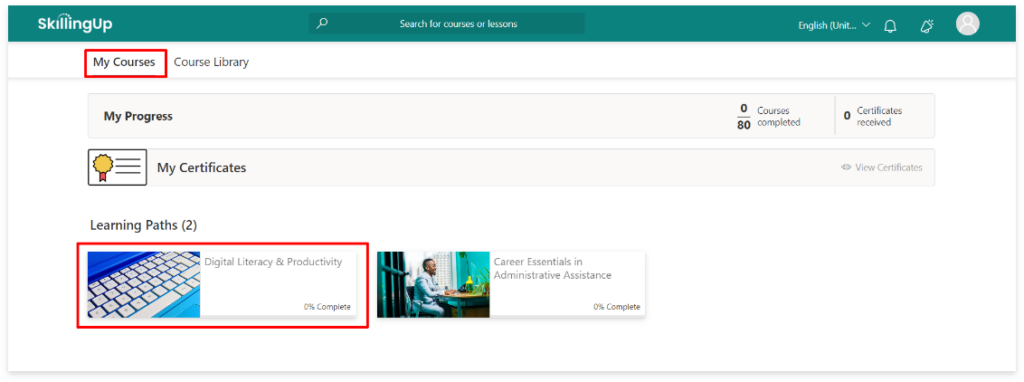
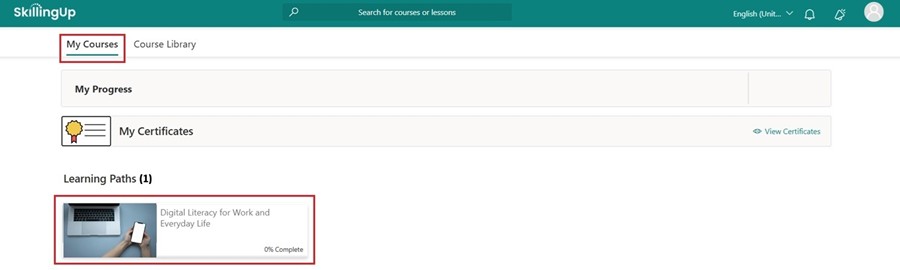
1. Click “My Courses” tab to view your assigned Learning Pathways.

2. Click on the Learning Pathways icon to access the content.

3. If you don’t see your Learning Pathway, please contact SkillingUp@marchofdimes.ca

My Courses page with a Learning Path course highlighted in lower-left corner

SkillingUp and LinkedIn

The Beginner and Intermediate learning pathways have been curated by LinkedIn Learning and Microsoft. To access the content for these learning pathways, you will be redirected to LinkedIn Learning.

If you don’t have a LinkedIn account, please create one with this link before starting your Digital Skills and Job Readiness learning pathway: https://www.linkedin.com/home

  1. Stay signed in to your LinkedIn account while completing your Digital Skills and Job Readiness training.
  2. Verify that you are logged in by clicking on the icon at the top right-hand side of the page. Your name will appear in the box that opens upon clicking.

Completing Your Learning Pathways – Beginner

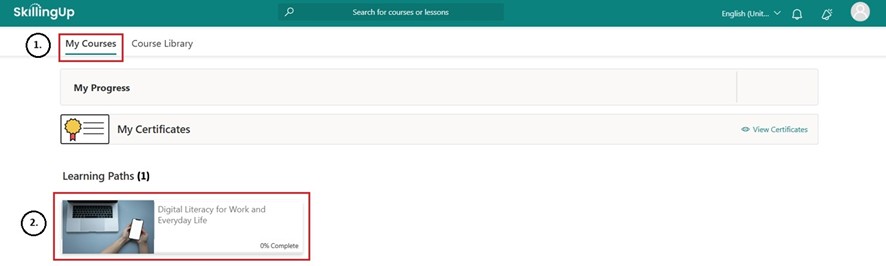
1. Click “My Courses” tab to view your assigned Learning Pathways.

2. Click on the Learning Path icon you want to access.

Click on the Learning Path icon you want to access.

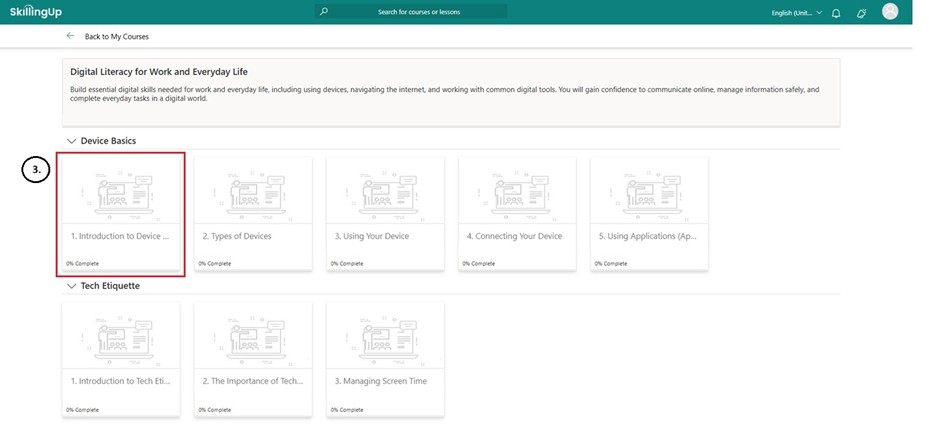
3. Click on the first Pathway module to view the content.

Click on the first Pathway module to view the content.

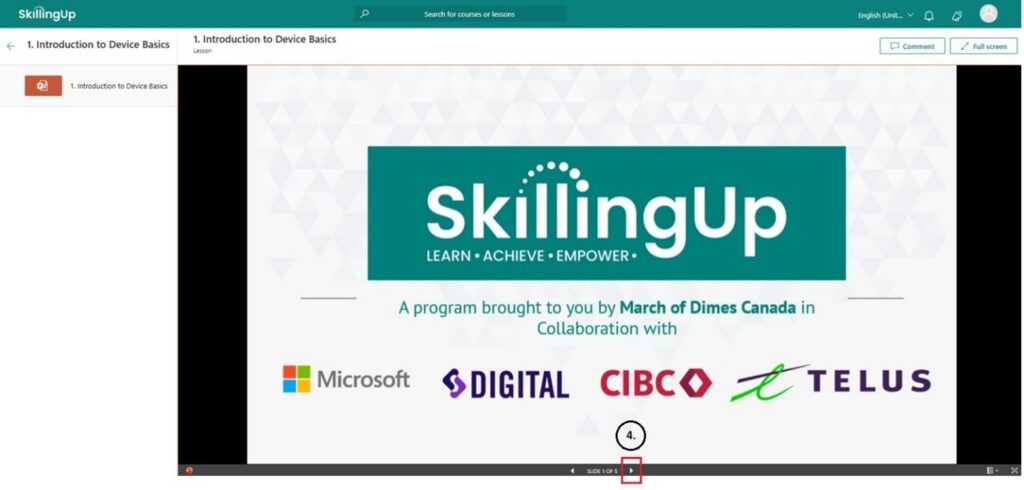
4. At the bottom of the screen, you will now click the arrow to navigate through the slides.

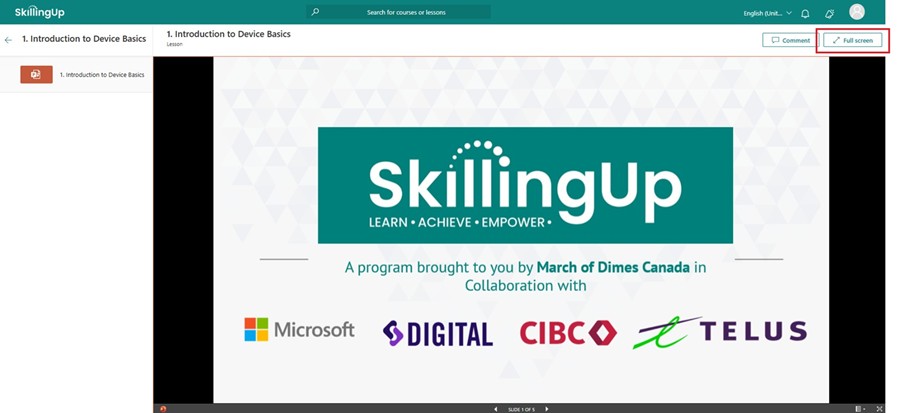
You can make the lesson take up your full screen by clicking “Full Screen” at the top right.

You can make the lesson take up your full screen by clicking “Full Screen” at the top right.

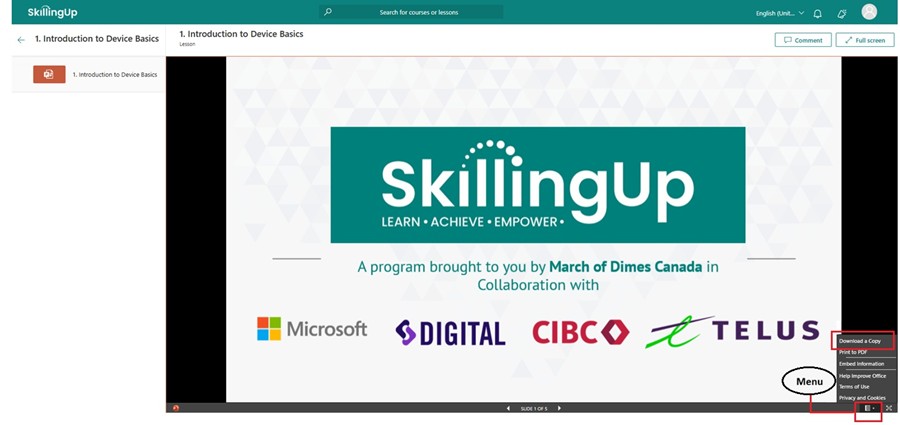
You can also download a copy of this lesson by clicking the button on the bottom right, then selecting “Download a Copy”.

You can also download a copy of this lesson by clicking the button on the bottom right, then selecting “Download a Copy”.

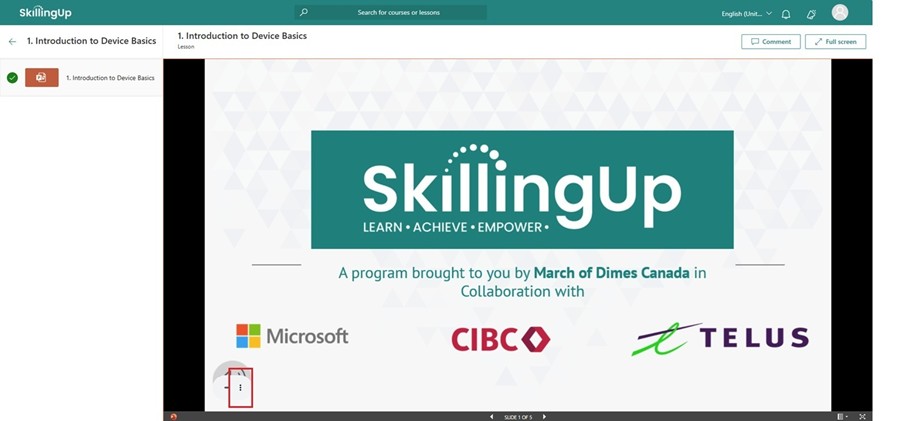
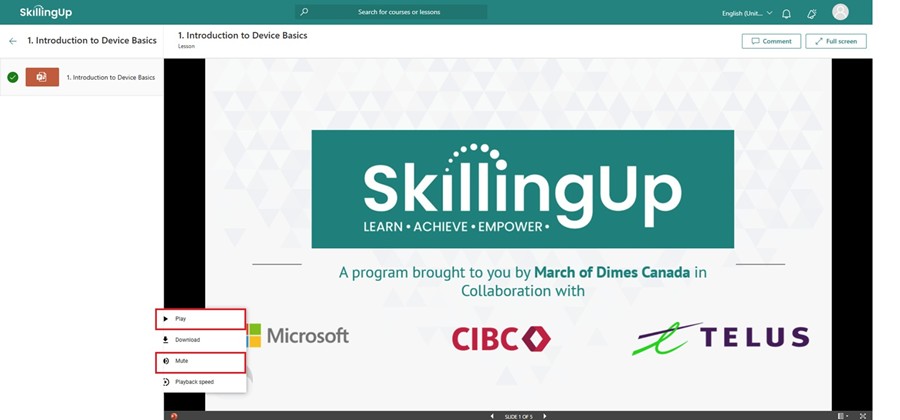
You can access more options for the slides by clicking the three dots on the bottom left of the slide.

You can access more options for the slides by clicking the three dots on the bottom left of the slide.

Here you can click “Play” to play audio or click “Mute” to mute audio.

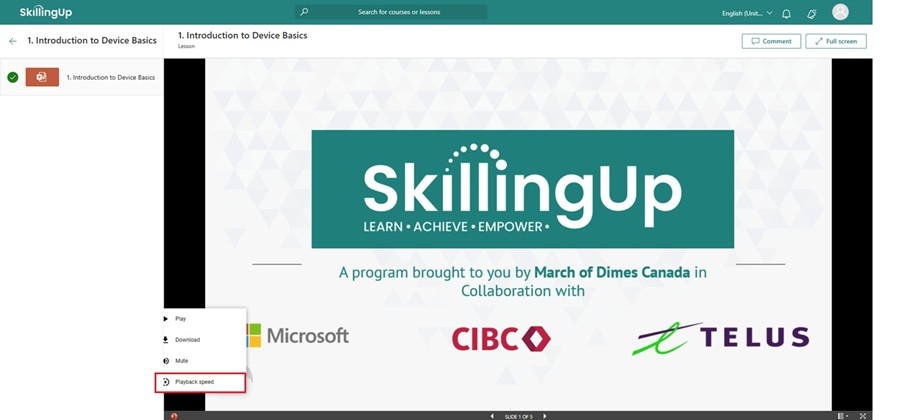
If you click “Playback Speed”, you can adjust the speed of the audio.

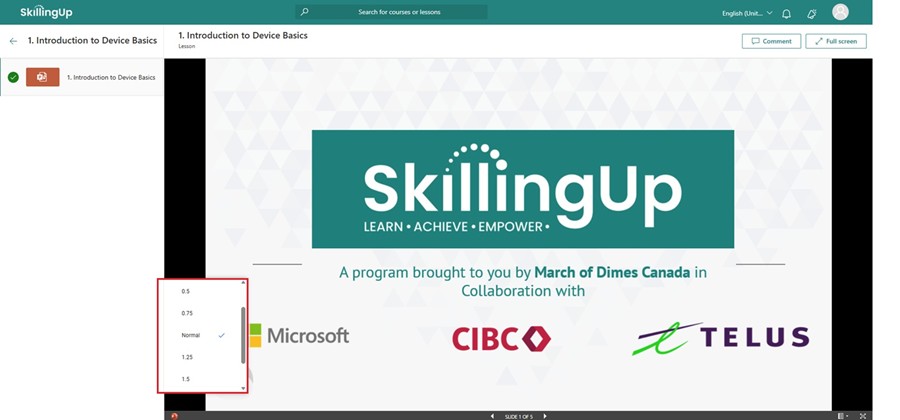
You can then choose a speed. Note that 0.5 is the lowest speed and 1.5 is the fastest speed.

You can then choose a speed. Note that 0.5 is the lowest speed and 1.5 is the fastest speed.

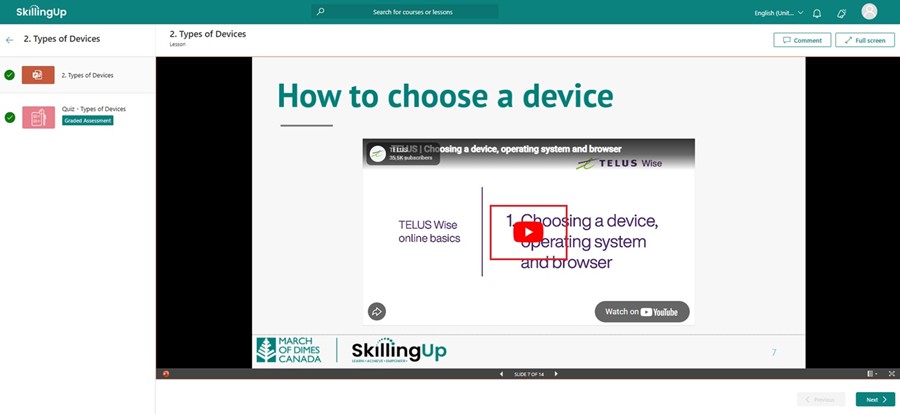
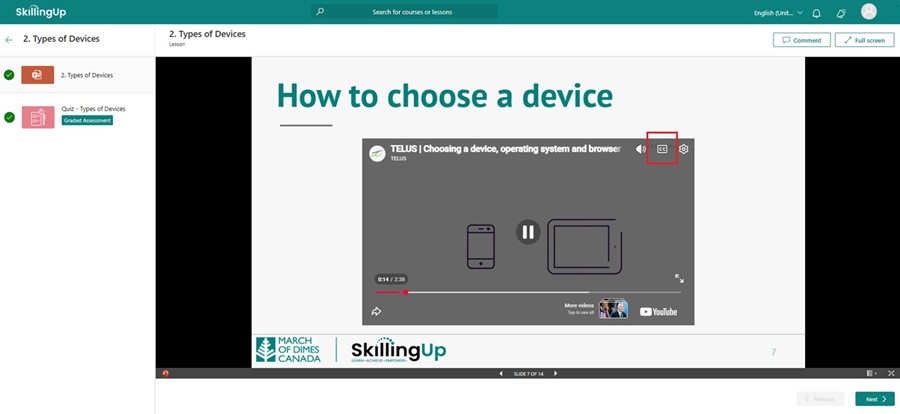
Some slides will have a video for you to watch. You can watch the video by clicking the button.

You can turn on Closed Captions for the video by moving your mouse over the video as it’s playing and clicking on the button on the top right.

You can turn on Closed Captions for the video by moving your mouse over the video as it’s playing and clicking on the button on the top right.

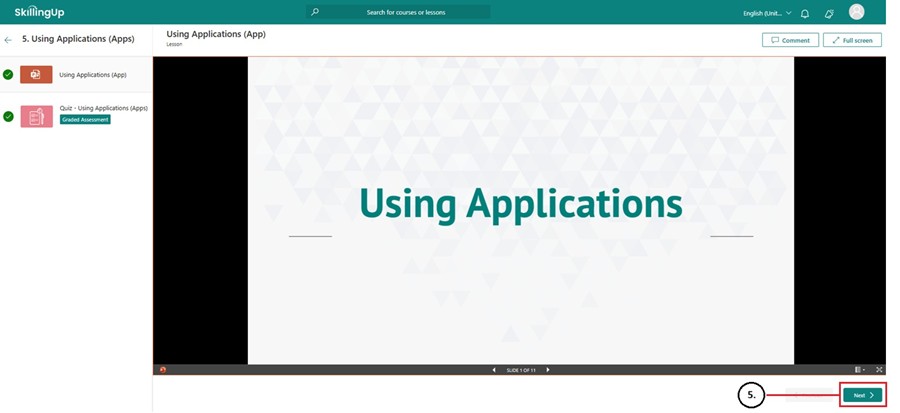
5. Some lessons will be followed by a quiz that must be completed. To access your quiz, click the green “Next” button on the bottom right.

Some lessons will be followed by a quiz that must be completed. To access your quiz, click the green “Next” button on the bottom right.

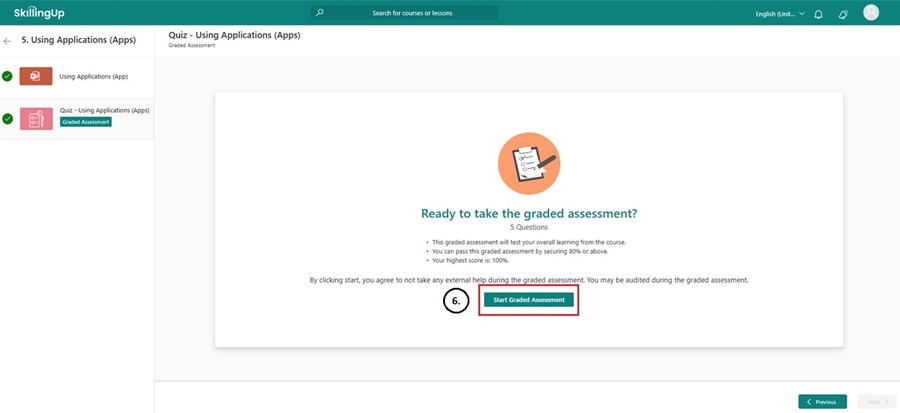
6. You will now click the green “Start Graded Assessment” button to begin your quiz. Each quiz requires a minimum grade of 80% to pass. You will have 3 attempts to pass the quiz before it is locked, but don’t worry – if the quiz is locked, you can continue on with your learning.

You will now click the green “Start Graded Assessment” button to begin your quiz. Each quiz requires a minimum grade of 80% to pass. You will have 3 attempts to pass the quiz before it is locked, but don’t worry - if the quiz is locked, you can continue on with your learning.

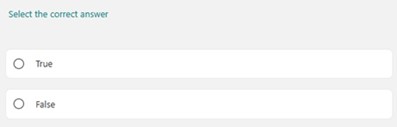
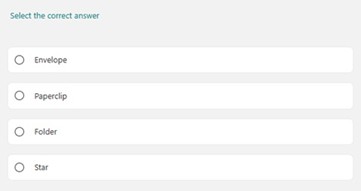
Quiz questions can be True/False or Multiple Choice.

Multiple Choice

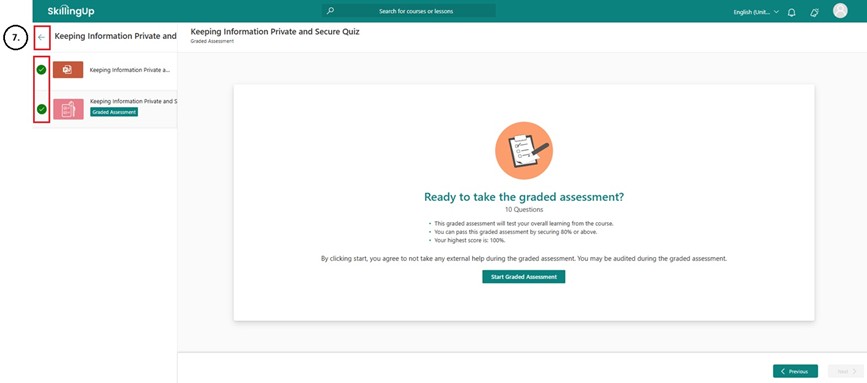
7. Once you have completed the module content and passed the quiz, you will see green check marks on the left. You can go back to your Learning Pathway by clicking the green arrow on the top left.

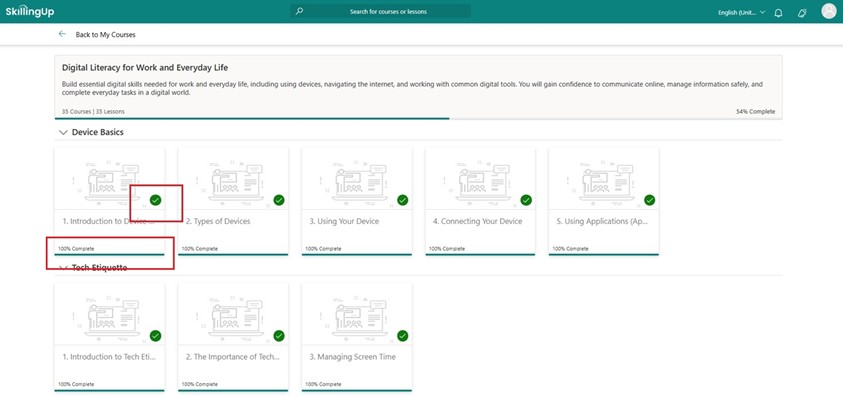
As you work through your Learning Pathway, you will notice green checkmarks on each module to let you know they have been completed. You will also see a completion percentage bar on each module.

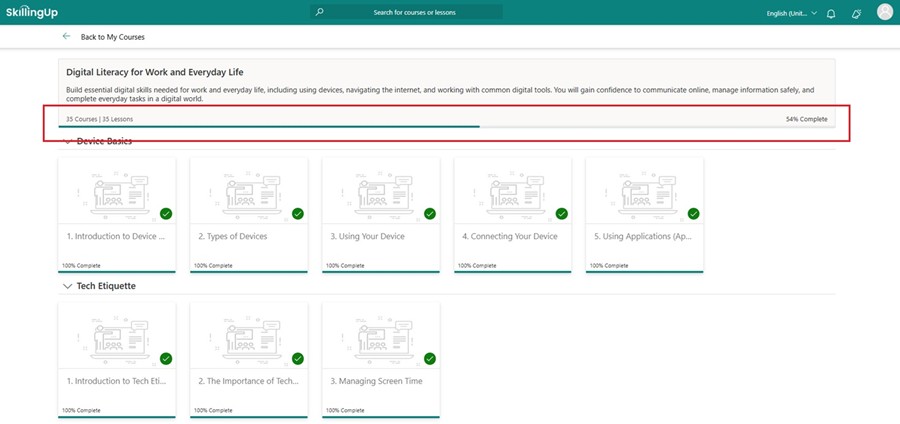
You will also notice a bar that shows the percentage of the Learning Pathway that you have completed. Continue working through your Learning Pathway until you have completed all modules.

You will also notice a bar that shows the percentage of the Learning Pathway that you have completed. Continue working through your Learning Pathway until you have completed all modules.

Completing Your Learning Pathways – Intermediate

1. Log in to LinkedIn: Make sure you are logged in to your LinkedIn account on a separate tab before starting your first lesson.

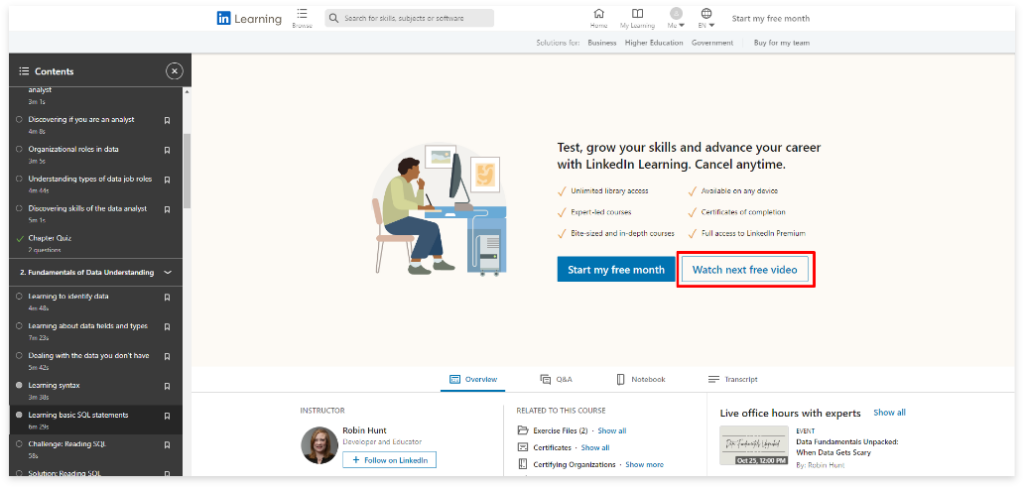
Note: You may be prompted to “Start your free month” as seen in the picture below while working through your lessons on the LinkedIn Learning page. You are NOT required to purchase a Premium Membership. You are not required to pay for any of the content or exams that are part of your Learning Pathway through the Digital Skills and Job Readiness program. Please click on “Watch next free video” to continue.

Illustration of person at a desk in front of a computer with buttons "Start my free month" and "Watch next free video"

2. Access the First Lesson:
– Go to the Digital Skills and Job Readiness platform and click on the first lesson on your assigned learning pathway.
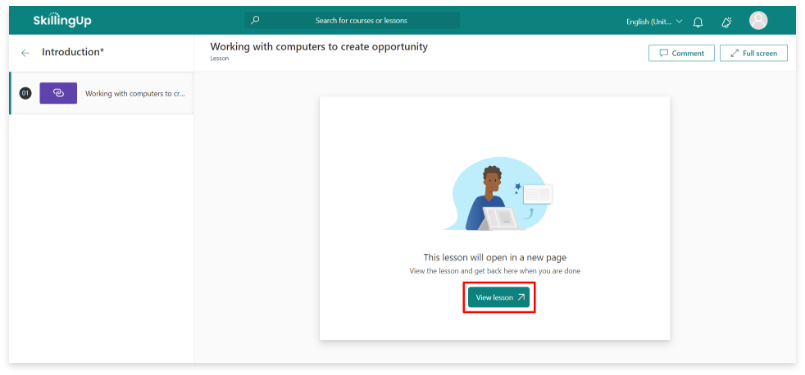
– You will be redirected to another page where you will click “View Lesson”.

Screenshot of Lesson page with illustration of person in front of laptop and green "View Lesson" button

3. Watch the Lesson:
– A new window for LinkedIn Learning will open, and the lesson video will start playing immediately.
– You can pause, stop, and replay the videos as needed.
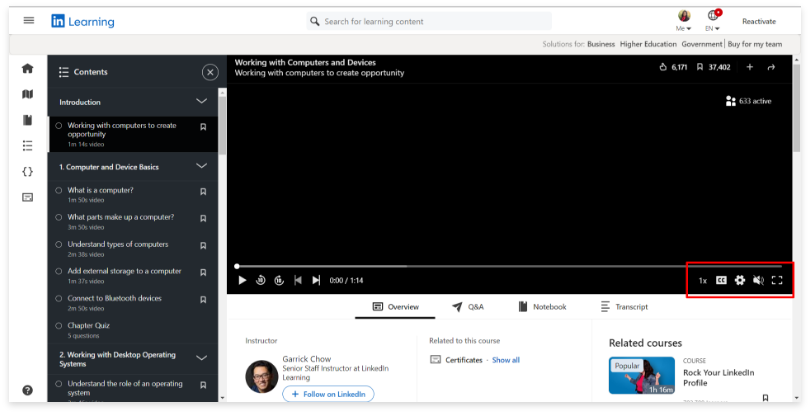
– Adjust the speed, captions, and volume using the icons on the bottom right corner.

4. Complete the Lesson:
– After watching the video, return to theDigital Skills and Job Readiness platform. 
– A green arrow beside the lesson will indicate that the lesson is completed both on SkillingUp and LinkedIn.
Please note that all contents need to be checked off green before the lesson is completed. 

Video lesson screen with contents menu on left-hand side and video screen in the main section with control options in the lower-right of video screen highlighted

5. Continue with the Next Lessons:
– Repeat the above steps for each lesson in your learning pathway until all lessons are completed.

Completing your Learning Pathways – MS Certification (Advanced Level)

  1. Click on the first module.
  2. You will be redirected to MS Learn in a separate window. 
  3. Create an account and sign in to MS Learn.
  4. Complete each lesson; you will see a green checkmark upon completion.
  5. Return to the Digital Skills and Job Readiness platform after each module to see a green checkmark and “100%” beside the module.
  6. Complete all learning modules. 

Final Exams for Career Essentials Learning Pathways (Intermediate Level)

To access the final exam:

  1. Complete all lessons and quizzes.
  2. Click the “Final Exam – Career Essentials in…” icon on the Digital Skills and Job Readiness platform.
  3. You will be redirected to the Learning Pathway’s main page.
  4. Click on “Take Exam”.

Note:
– You will have 90 minutes to complete the exam. 
– You have 3 attempts; after 3 failed attempts, you will have to wait 6 months before re-writing.
– A grade of 70% or higher is required to earn the certificate.
– The Generative AI Learning Pathway has 2 exams: one after the final course, “Introduction to Generative AI”, and one after the full course.

You can also access your Final Exam on LinkedIn Learning

Final Exams for MS Certification Learning Pathways (Advanced Level)

Once you have completed all learning modules for the MS Certification, contact SkillingUp@marchofdimes.ca to request your exam voucher when you are ready to book and write your final exam. 

Downloading Your Certificate – Beginner Pathways

Once you have completed all modules and passed all quizzes, you will have the option to download your certificate of completion on your learning pathway page.

  1. Find your completion certificate on LinkedIn.
First you will click on your learning pathway on the “My Courses” page.

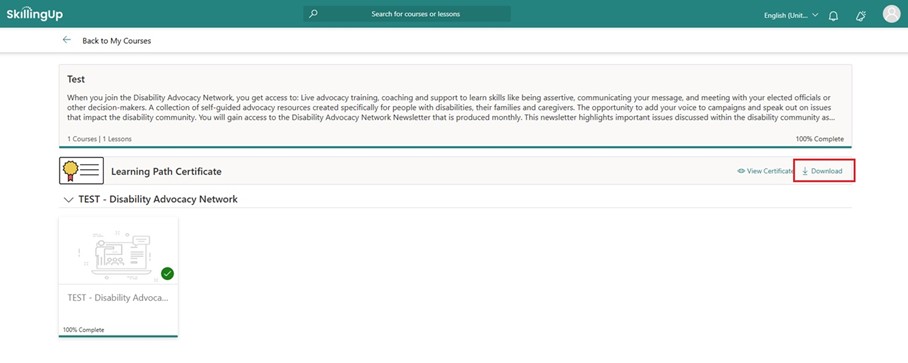
2. Next you will click “Download” on the top right-hand side of this page.

Next you will click “Download” on the top right-hand side of this page.

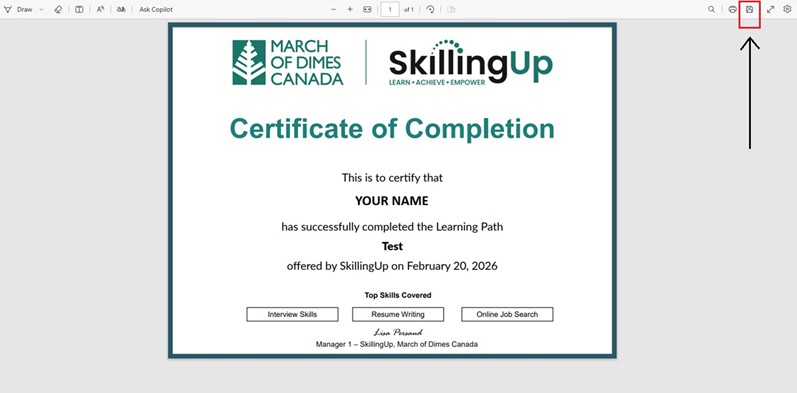
3. A new tab will open with your certificate on it. You will then click the disk icon on the top right to save the document to your computer.

A new tab will open with your certificate on it. You will then click the disk icon on the top right to save the document to your computer.

Downloading Certificate - Intermediate Pathways

  1. Find your certificate on LinkedIn after passing your exam.
  2. Select your learning pathway from this link: Career Essentials Certificate Pathways.
  3. Sign in.
  4. Click “Get certificate” near the top-right corner.
  5. Click “Download PDF only”.
  6. Send it as an attachment to SkillingUp@marchofdimes.ca.

Downloading Certificate – MS Certification (Advanced)

  1. Login to your MS Learn Account and select “Profile”.
  2. Select “Credentials” from the menu on the right hand side.
  3. From there you will see the “Applied Skills” and “Certification”. Select “Certification”.
  4. From your Certification Dashboard, click on the “View Certificates” button in the “Certificates” section.
  5. To download, click “download” in the lower right on the “Certificates” icon.
  6. This will list the certificates that you have earned. Click the box next to the name of the certificate to select it.
  7. You can preview a single selected certificate, or you can download a .zip file with multiple certificates selected.
  8. Send it as an attachment to SkillingUp@marchofdimes.ca.

Resources – Free Microsoft Productivity Apps

Access free Microsoft productivity apps (Word, Excel, PowerPoint, Outlook, OneDrive, and Teams) by:

  1. Visiting this link: Microsoft 365 Free Productivity Apps.
  2. Signing in or creating an account by clicking “Sign up for free”.
  3. Using the apps online when signed in.

Frequently Asked Questions

Both! You will click on your lesson icon on the Digital Skills and Job Readiness platform and be redirected to LinkedIn Learning. Once you watch all videos and complete all quizzes, return to the Digital Skills and Job Readiness platform to click on the next lesson.
Contact the SkillingUp team and we will refer you to our Accessible Technology Specialists.

Yes! Contact the Digital Skills and Job Readiness team and we will refer you to our Digital Fundamentals volunteers.

Send a copy of your certificate to the Digital Skills and Job Readiness team. You can then choose to participate in a mentorship or enroll in a new learning pathway.

We know life happens. That’s why you can always pause your learning journey and start where you left off when you're ready. We're here to support you every step of the way.

SkillingUp is all about community. Inside the Learner Portal, you can engage with fellow learners and explore mentorship opportunities to build up your tech skills and career prospects.

We take your privacy very seriously. Your information is encrypted and stored securely and is used strictly for enhancing your learning experience.

How-To Videos

Contact the SkillingUp team at: SkillingUp@marchofdimes.ca